Stems & Audio to MIDI
Split a clip into stems with Demucs, Spleeter or HPSS, and turn a clip into MIDI notes, all on your own machine.
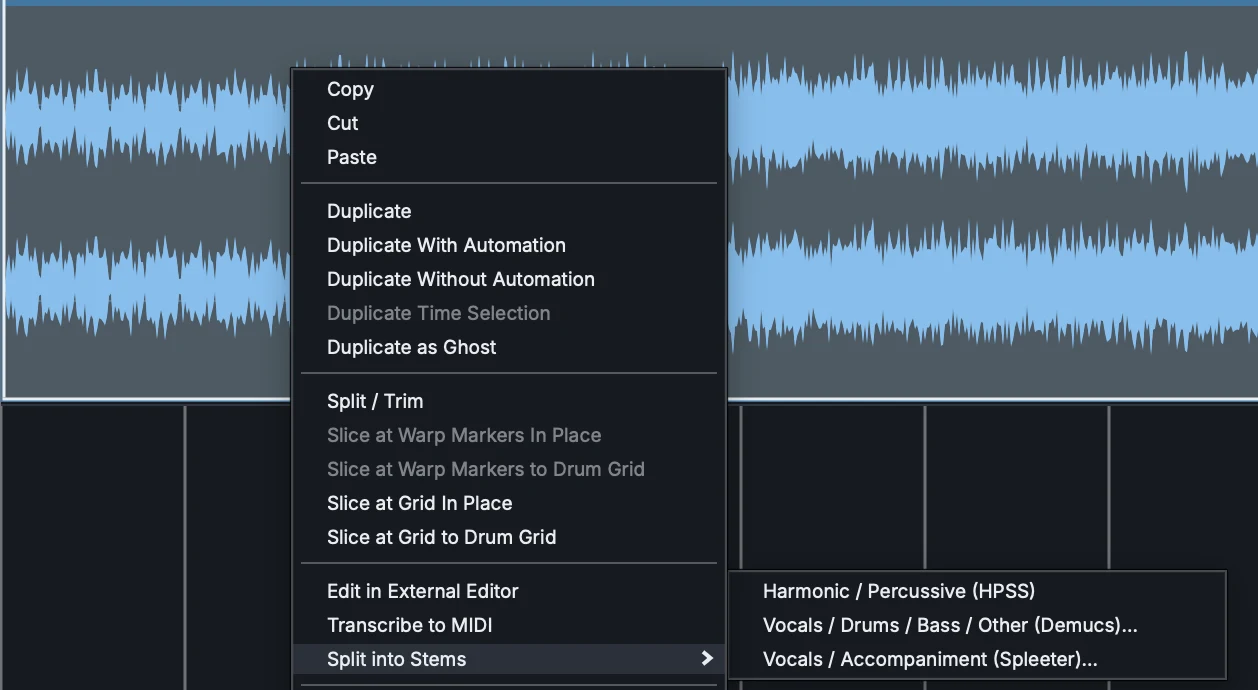
Right-click an audio clip and choose Split into Stems. Demucs gives the four-way split: drums, bass, vocals and everything else. Spleeter is quicker and lighter, and splits the vocal from the rest. HPSS needs no model at all: it separates sustained, pitched sound from hits, which is how you pull the drums away from a pad or a guitar.
The stems land on new tracks, grouped under the original, and the original is muted so nothing plays twice. Each stem clip keeps the original's position, loop, stretch mode and warp markers, so it sits exactly where the source did. The files are 32-bit float WAVs in the project's folder, and a second split never overwrites the first.
Transcribe to MIDI is on the same menu. MAGDA finds the notes in the clip with the open-source Basic Pitch model, which ships with the app, and writes them into a MIDI clip over the same bars, ready for an instrument. It works best on one clearly pitched part, like a vocal, a bassline or a lead, so split a song first and then transcribe the bass.
Everything runs on your machine, off the audio thread, so playback carries on while it works. The Demucs and Spleeter models download once, on first use. On Intel Macs, Split into Stems offers HPSS and transcription isn't available.
The manual covers Stem Separation and Transcribe Audio to MIDI.
- Demucs: drums, bass, vocals and other
- Spleeter: vocals and accompaniment
- HPSS: harmonic and percussive, with no download
- Stems grouped under the source, which is muted
- Stem clips keep position, loop, stretch and warp markers
- Audio to MIDI with the bundled Basic Pitch model
- Offline, on your machine, and undoable